Links


Banner

Showing posts with label Technology. Show all posts

March 15, 2021

  February 2021 Newsletter!

I'm excited to share our next newsletter - February 2021, check it out! 

To view the PDF, just click on the link above and download the PDF to you computer. You do not need dropbox or to install anything, just download the file.

Like us on Facebook: 
Buckner Elementary Art

Like us on Instagram and Twitter: 
Art is my Jam


August 23, 2020

  Check out my NEW
Interactive Google Slides! 

Perfect for learning about "The Elements of Art"! This one features the Element of Art - LINE and includes drag and drop options, etc... It's both informational and interactive for students. Perfect for those using Google Classroom. 

You can find them in my TPT Shoppe by clicking here:


July 28, 2020


Bitmoji Classroom Designs
"Virtual Classroom"

Working on creating my virtual classroom “Bitmoji Style”. So far I’ve created an Art Library, Calming Room, Art Gallery, Parent Sheet and my Art Classroom. Working on adding some other things like lesson links, etc... 2020/2021 School Year is kicking off soon and I’m hoping all my Amazing Artists will LOVE this. 


July 13, 2020

"Bitmoji Fever" Google Slides

I've been working hard on creating a faster digital workflow for students and myself. Check out my new cover and I'm adding lots of links to enhance their learning. Here's a preview and I'll have it "live" soon :)
Art is my Jam! Virtual Classroom 


February 07, 2020

Mulga inspired "Parrots"
I did a lot of research and found a few new artists that I've been following and absolutely LOVE! Mulga is one of them because of the bright colors and fun paintings he creates with animals. He also has a book and this link will take you to the link to buy it. 

This lesson I created for my 3rd graders. It was a tough lesson because they had to do this following my videos on their own. They also got choices in what type of shoes their parrot is wearing, the sunglasses style and what he/she was eating. 

This lesson will be posted on my TPT Shoppe soon. I hope you will enjoy it as much as I have in creating and implementing it.  


Jen Aranyi inspired...
Mason Jars and Mountainscapes! Remember the new art lessons I was working on? Here is one of them. Look at the amazing results from my 4th graders.

This lesson they totally completed on their own using the link provided. I was so proud of them and they absolutely loved being able to do this on their own. 

Below is the QR Code for the lesson from my previous post. You will need to have Google Slides to view and inside the slides are links to videos and handouts that will be helpful. 

Mason Jar Watercolors based of the artist Jen Aranyi


November 23, 2019


4th Grade Examples

Digital Self-Portraits

I have to admit, when I started working on this project, I wasn't sure how it would turn out. It is one of my "original" art lessons and I was so excited to try it out and I have to say the results were so awesome. 

I'm LOVING the APP Green Screen by DoInk! 

Here's the link to the step-by-step instructions for teachers on my TPT Shoppe. 


November 10, 2019


Bringing AR to the Art Room

Augmented Reality (AR) is a huge thing right now and the students love it.   I was having a hard time trying to find ways to incorporate it into the art room without taking away too much of our creative time teaching it. And, I found a few great ways to make both things happen and I'm totally excited about it. 

The first was an app called "Quiver" which is limited but it gets kids excited about AR and ways to use it.  I used it to introduce 4th and 5th graders to the concept. 


The second is an app and desktop version called "Metaverse" which is also limited but it has some fun features. It's more teacher friendly than student. Here's an example of the piece I created. Just scan the QR code with the Metaverse App and see an example. This one is very simple and I'll post more later:) 

The third is an app and desktop version called "EyeJack". This one is by far the BEST one I've come across. I'm so excited about the things this AR tool offers for artists. My students will be creating pieces soon with this. So stay tuned for a post about this app and how it can be incoporated into the art room. 


I'm excited to share our next newsletter - October Newsletter, check it out! 

To view the PDF, just click on the link above and download the PDF to you computer. You do not need dropbox or to install anything, just download the file.


July 27, 2019


Exciting News!
I'm Google Level 1 Certified

As an art teacher, I thought why should I get certified as a "Google Educator"? 

Well after doing a ton of research and checking out some BLOGS (which I will list below), I realized that it would be a great resource for me and something I'd like to integrate into my own teaching and classroom.

The source that really helped me was going through Kasey Bell's matrix that she posts for FREE. Here's the link to her site: https://shakeuplearning.com/blog/ 

I had never used Google Classroom and I soon fell in love with a  lot of aspects of it. I will be posting videos and more information as I document my process. You can also find how I used it previously in my "STEAM" classes under my labels titled STEAM & Google Classroom. 

Here are a few other sites that I've found that have some great resources, etc...


June 04, 2019


Free "Coding" Resources...

Borrowed this from another site, thank you!
Some great places to find FREE coding resources, lessons and ideas:

1. Code.org - In a different blog post, I briefly talked about this great resource and you can read it here

What I really liked about this program:

-  I teach over 600 students and I could create multiple classes and assign each student their course. What was really great is that if you have students who aren't grade level ready for there courses, you can assign them an appropriate course and no one knows but you. This allows for all students to feel and be successful in coding. 

-  I can monitor each students individual progress, view their lessons and cater their learning needs as needed. The teacher aspect is a great tool.

-  There are unplugged activities also. I really liked the cup stacking activity and so did my students. 


2. ScratchJr. - In a different blog post, I briefly talked about this great resource and you can read it here.
Image of one of my challenge sheets - link attached!
I used this resource with my Kindergarten, 1st and 2nd graders and they absolutely LOVED it. I created a variety of different tasks for students to create. Attached is a copy of one of their "Challenges". Just make sure if you teach multiple classes and grades and they share iPads, create a system so you can identify who has done what.

For example:
- Each of my iPads are a group color (ex: red, yellow, etc...)
- Each class saves their work with identifying codes. For example: M2ch1 (First Initial of teachers last name,grade level, challenge #). Because students get assigned a specific iPad color, I know who has done the work and this has made a hug difference in my grading ease. 
- I laminate and print all my challenges so they can be reused over and over without the worry of getting messed up. 

3. Scratch - Is the computer version for older students. This resource will allow you as an educator to create a FREE account. I think you have the ability to get 50 free student accounts when you sign up. So what I did is create this for only my 5th graders. Each class would have an account and when I was finished with one class I'd "suspend" the account and open the new class. This worked great but takes a little more planning. I do recommend creating tasks for your class so they don't play around. If you have a drama teacher...collaborating with him/her would be a perfect way to make the lesson fun.

I know there are many more FREE resources, but from an educators perspective, these really were my favorite. 


April 05, 2019

ScratchJr®...A great coding app!

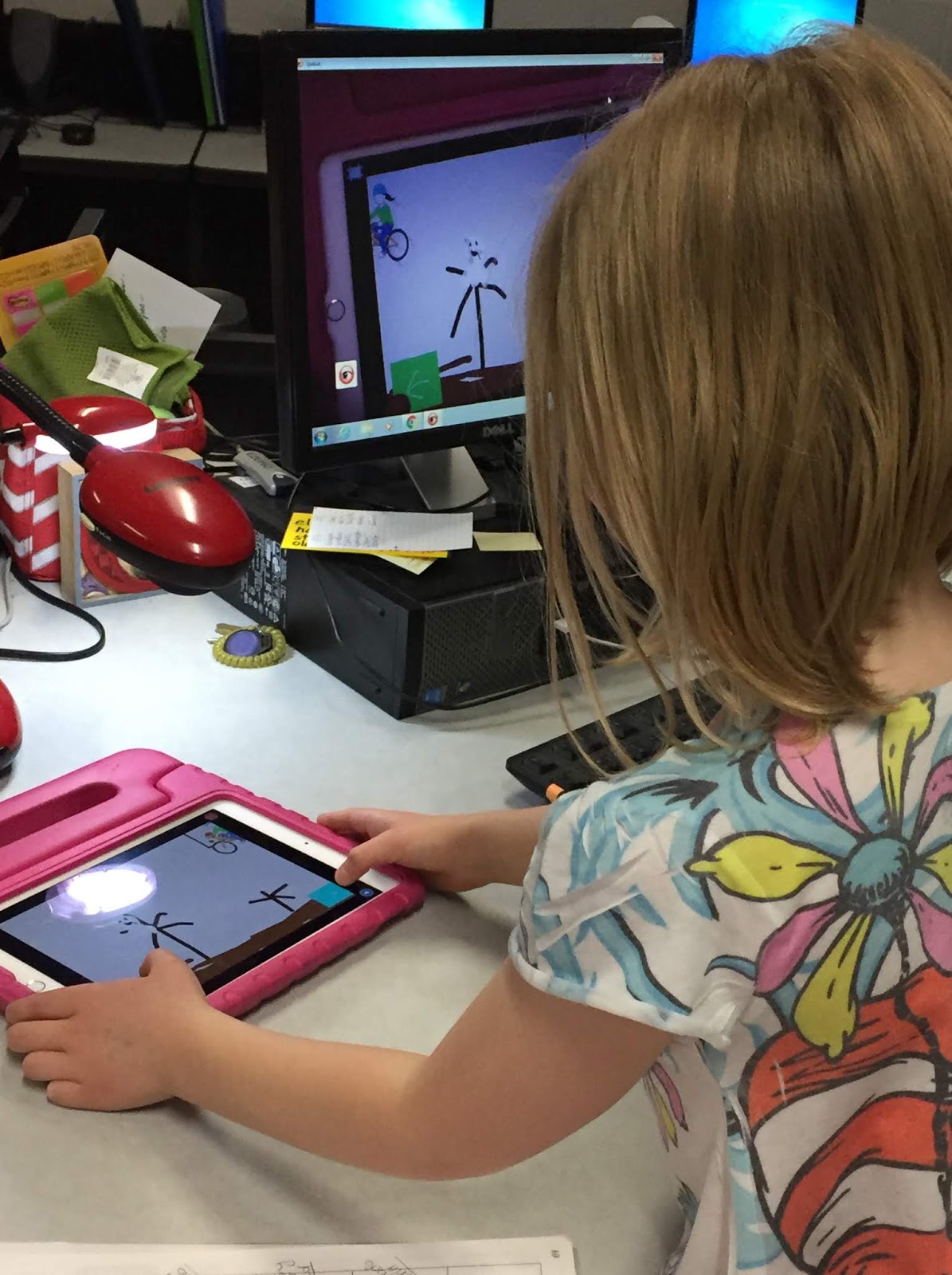
ScratchJr® is so amazing!
It's a great coding app for younger children and easy to navigate.

Check out their website and see what awesome things they offer. I use ScratchJr® with my Kindergarteners, 1st and 2nd graders to design and code programs in our STEAM class. Many of our ideas come from the curriculum that PLTW® incorporates into there modules. But, I've also designed some projects myself. 

The students love it and it's so much fun, especially the part about being able to draw your own characters and backgrounds. The art teacher in me is definatley coming out here. 


Below are the links to some FREE posters for you that I've created for my students. Please feel free to use them, but since ScratchJr® is copy written, I ask that you don't sell them on any site, thank you. 

ScratchJr - poster1
ScratchJr - poster2

If you would like some other great resources to go with your programming curriculum check out my TPT shoppe. I've got a lot of STEm/STEAM resources to choose from. Here's a sample of what I use when setting up pair programming partners. It's a great way to get both students involved without the fighting over who gets to touch the IPads. 


If you are able to, only have 2 students per device and let them take turns being the Driver and Navigator. Both students will present together. 

But, If you have to have 3 students together, this helps give them all jobs. But each child should get the opportunity to be the driver. I usually alter days or tasks so there's no confusion. 

Here's the link to my Programming Jobs print in my shoppe. I use this everytime and it really makes a difference and eliminates the arguments. 


1st Grades Game Design