Links


Banner

June 04, 2019


2019/2020 Teacher Planner

Just finished creating my elementary/art teacher planner for the 2019/2020 school year and I'm "SUPER" excited about it!


This binder is perfect for both elementary and art teachers. Here's the link to my TPT Shoppe where you can find it. "Superhero Themed Planner/Binder"


I've also added a few new fun designs that go with my "HERO" theme! Check them out... These are my new vocabulary word wall pieces.

I've also created table signs, posters, job tags and much more. These are so cute:) I can't wait to use them this year in my own classroom. 


Free "Coding" Resources...

Borrowed this from another site, thank you!
Some great places to find FREE coding resources, lessons and ideas:

1. Code.org - In a different blog post, I briefly talked about this great resource and you can read it here. 

What I really liked about this program:

-  I teach over 600 students and I could create multiple classes and assign each student their course. What was really great is that if you have students who aren't grade level ready for there courses, you can assign them an appropriate course and no one knows but you. This allows for all students to feel and be successful in coding. 

-  I can monitor each students individual progress, view their lessons and cater their learning needs as needed. The teacher aspect is a great tool.

-  There are unplugged activities also. I really liked the cup stacking activity and so did my students. 


2. ScratchJr. - In a different blog post, I briefly talked about this great resource and you can read it here.
Image of one of my challenge sheets - link attached!
I used this resource with my Kindergarten, 1st and 2nd graders and they absolutely LOVED it. I created a variety of different tasks for students to create. Attached is a copy of one of their "Challenges". Just make sure if you teach multiple classes and grades and they share iPads, create a system so you can identify who has done what.

For example:
- Each of my iPads are a group color (ex: red, yellow, etc...)
- Each class saves their work with identifying codes. For example: M2ch1 (First Initial of teachers last name,grade level, challenge #). Because students get assigned a specific iPad color, I know who has done the work and this has made a hug difference in my grading ease. 
- I laminate and print all my challenges so they can be reused over and over without the worry of getting messed up. 

3. Scratch - Is the computer version for older students. This resource will allow you as an educator to create a FREE account. I think you have the ability to get 50 free student accounts when you sign up. So what I did is create this for only my 5th graders. Each class would have an account and when I was finished with one class I'd "suspend" the account and open the new class. This worked great but takes a little more planning. I do recommend creating tasks for your class so they don't play around. If you have a drama teacher...collaborating with him/her would be a perfect way to make the lesson fun.

I know there are many more FREE resources, but from an educators perspective, these really were my favorite. 


April 14, 2019


Classroom Layout/Setup


Love having photos of the students work in action! 

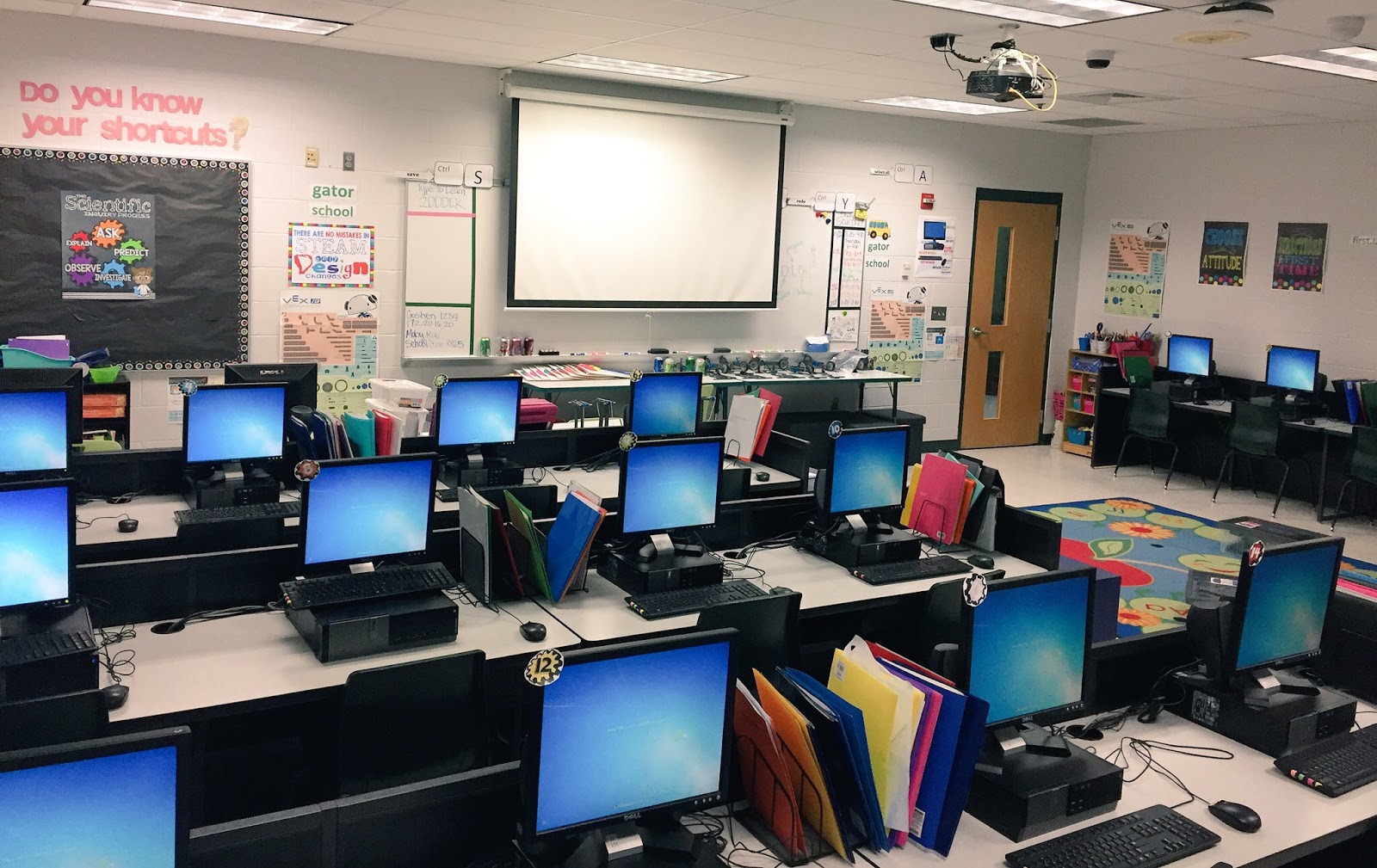
One thing I've learned is, classroom layout is so important when teaching. It was fun redesigning my classroom for PLTW and I love how things turned out. I'm constantly re-evaluating the design and moving things to make it work for my students. Here's a few tips:


1. Make sure you have an area where kids can come together without distractions. Such as a carpet area. This was so huge for me especially since I have a computer lab as my classroom.
2. Because I teach every student within the school, each student has a 3-prong folder that I keep in the class. Inside their folders are:
 • username/passwords to every program we use for easy access. 
 • launch logs (PLTW) and graph paper for drawing, notes, etc... 

3. Flexible seating if at all possible. I have regular chairs, rockers and cubes for students to choose from. 

4. Designated supply areas.

I hope these images help anyone trying to come of with classroom layout ideas. I'll post more as I do new things and come up with other ideas. 


April 05, 2019

ScratchJr®...A great coding app!

ScratchJr® is so amazing!
It's a great coding app for younger children and easy to navigate.

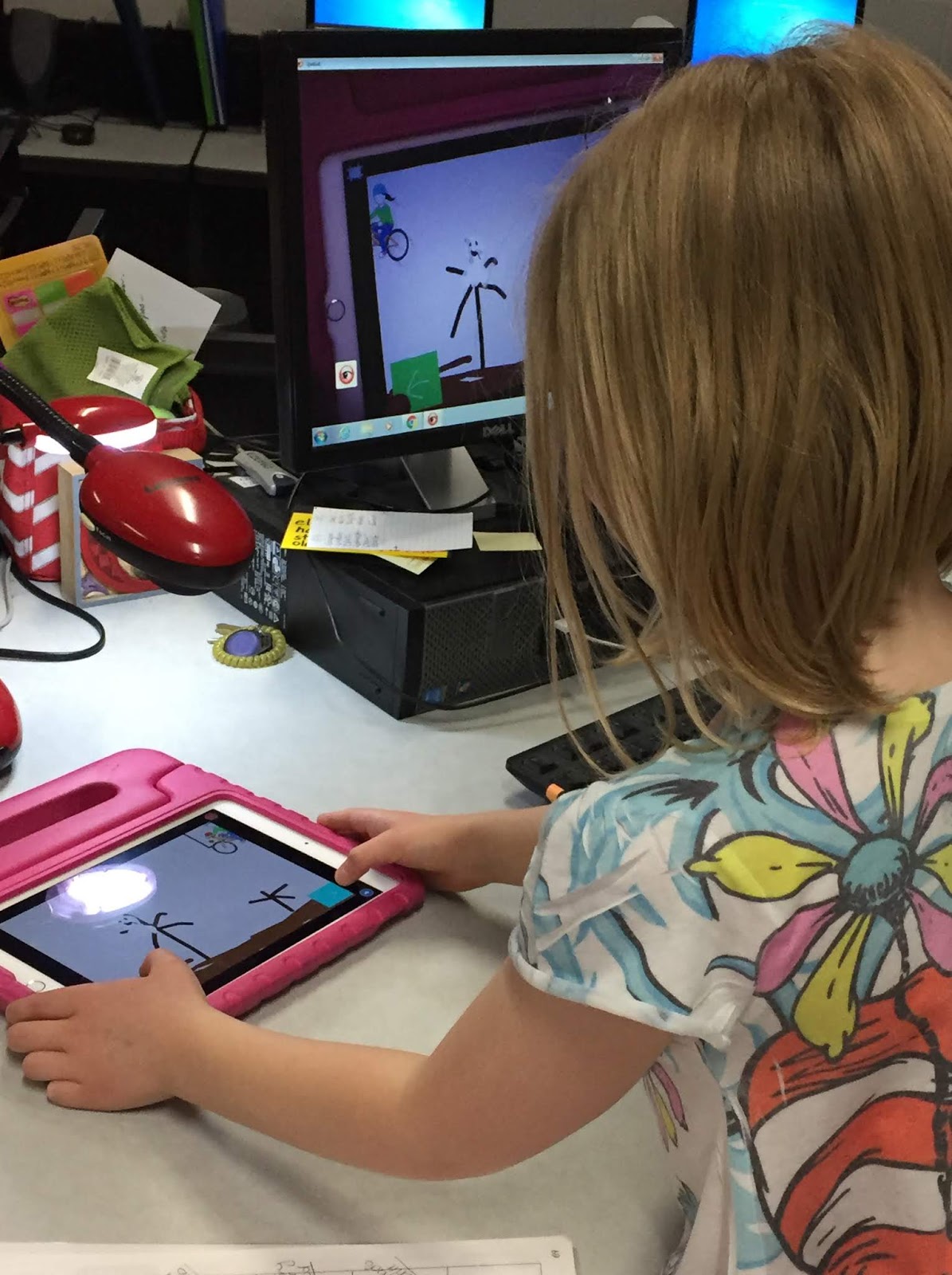
Check out their website and see what awesome things they offer. I use ScratchJr® with my Kindergarteners, 1st and 2nd graders to design and code programs in our STEAM class. Many of our ideas come from the curriculum that PLTW® incorporates into there modules. But, I've also designed some projects myself. 

The students love it and it's so much fun, especially the part about being able to draw your own characters and backgrounds. The art teacher in me is definatley coming out here. 


Below are the links to some FREE posters for you that I've created for my students. Please feel free to use them, but since ScratchJr® is copy written, I ask that you don't sell them on any site, thank you. 

ScratchJr - poster1
ScratchJr - poster2

If you would like some other great resources to go with your programming curriculum check out my TPT shoppe. I've got a lot of STEm/STEAM resources to choose from. Here's a sample of what I use when setting up pair programming partners. It's a great way to get both students involved without the fighting over who gets to touch the IPads. 


If you are able to, only have 2 students per device and let them take turns being the Driver and Navigator. Both students will present together. 

But, If you have to have 3 students together, this helps give them all jobs. But each child should get the opportunity to be the driver. I usually alter days or tasks so there's no confusion. 

Here's the link to my Programming Jobs print in my shoppe. I use this everytime and it really makes a difference and eliminates the arguments. 


1st Grades Game Design


April STEAM Newsletter - To view the PDF, just click on the link and download the PDF to your computer. You don't need Dropbox, just download the file to your computer.


I get asked this alot...
"What is STEAM?"

STEAM is an acronym that stands for Science, Technology, Engineering, Art and Math. It's an educational approach to learning that uses problem solving for guiding student inquiry, dialogue, and critical thinking. The end results are students who have real-world problems to solve are naturally motivated. 

STEAM education provides children opportunities to work on a task, experiment, correct mistakes and develop strategies. They are able to create theories that they test and then modify them from what happens. It provides children with an active role in their own learning. It also allows for independent, partner and group work to take place, giving them real-world scenerios.  

A really great website that I found to better explain all the ascpects of STEAM is "Understanding STEAM and how children use it." 


1st Graders Designing a shoe adapted to where they're traveling